 |
|
WS-3600 PC INTERFACE OVERVIEW -
You can install the "Heavy Weather PRO V1.1" software
on your PC with the included CD-ROM or Download
the software directly from this web site.
- Simply use the PC cable supplied and connect
the base station to the PC using the desired
COM port on your PC.
- Activate PC Weather
Software to display and record all weather
data received by the base station from the
external sensors on your PC.
- Use the Heavy Weather PC Interface to easily
adjust the settings
on your base station, including setting
alarms.
- Chart graphs
of the Weather History Data using the "Heavy Weather Review software" (included).
|
| |
|
|
SYSTEM
REQUIREMENTS -
To install the “Heavy Weather PRO V1.1”
software onto your PC, the minimum system requirement
is:
- Operating system: Windows 98 or higher, Windows NT4 (Service Pack 6a)
- Internet Explorer 4.01 or above
- Processor: Pentium III 500 MHz or above processor
- Memory: 128MB of RAM, 256MB is recommended
- CD-ROM drive OR Internet Connection to www.heavyweather.info
ACTIVATE
PC WEATHER SOFTWARE -
Once the weather station is connected to the
PC, you can run the “Heavy Weather PRO V1.1” and "Heavy Weather Review"
programs and it will automatically detect the
connection to the base station and start transferring
the weather data from on the PC. All the weather
data; wind; rain; relative pressure; indoor
and outdoor temperature/humidity; dew point
and wind chill will almost be simultaneously
received and displayed in the relevant sections
of the Heavy Weather program.
ADJUST
SETTINGS - |
| |
| Main
History Window
All the weather data; wind; rain; relative
and absolute air pressure; indoor and
outdoor temperature/humidity; dew point
and wind chill, wind speed, wind direction,
time and date is displayed and recorded. You may double click on the alarm icons (bell symbols) to change the settings an activate the alarm. |
|
 |
| |
|
Options Window
Here the units of display for the user language, pressure,
temperature, rainfall, wind speed, and file directories can
be set according the users preference.
Once set, the weather data on the main
Heavy Weather window and history file(s)
will be updated accordingly. Setting the
displayed units from the "Heavy Weather PRO"
program does not affect the units set
in the base station. |
|
|
 |
| |
|
| |
“Heavy Weather” PC Software allows
you to use your PC to program multiple alarms
for various weather conditions.
For alarm setting capabilities, see the table
below:
|
| ITEM |
ALARM |
LOW
ALARM |
HIGH
ALARM |
| Time |
|
|
|
| Storm Warning |
• |
|
|
| Indoor Temperature |
|
• |
• |
| Indoor Humidity |
|
• |
• |
| Outdoor Temperature |
|
• |
• |
| Outdoor Humidity |
|
• |
• |
| Rainfall 24 hour |
|
|
• |
| Rainfall 1 hour |
|
|
• |
| Dew Point |
|
• |
• |
| Pressure |
|
• |
• |
| Wind Chill |
|
|
• |
| Wind Velocity |
|
• |
• |
| Wind Direction |
• |
|
|
|
| |
|
|
CHART
GRAPHS USING THE WEATHER HISTORY DATA-
The following is an example of how to save text
files and create charts using "Heavy Weather Review" software, which is included with "Heavyweather PRO V1.1".
|
| |
| Main
Window - Graphs
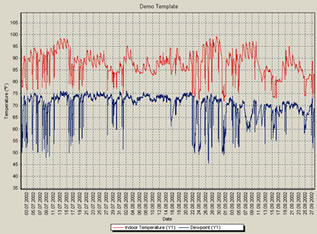
When you open the "Heavyweather Review" program, you can create and save the weather data from the desired history file as a graph of the collected weather data.
If the "Graph" tab is selected, you will see all of the saved graphs. By double-clicking the graph name, the graph will be displayed in the plot/data window.
The plot/data window will always show the current plot using selected history files according to the selected template setting.
If you click the "Data" tab you will see the corresponding data used in the plot.
|
|
 |
| |
|
If the "Template" tab is selected, you will see all templates available in the respective directory of C:\Programs\HeavyWeather. You can also open a template by double-clicking it. A plot will be generated in the plot/data window according to your template setting with the data in the selected history file.
|
|
 |
 |
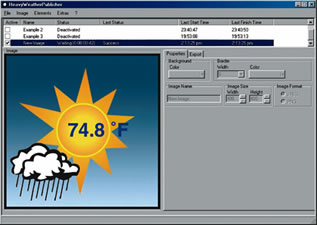
Heavyweather Publisher Software
This program allows you to publish current weather data over the internet as part of a web site.
Click on Software Downloads for the latest free software versions available for your weather station.
|
|
 |
| |
|
|
|
| |
|
|


